Chaturbate Downloader Chrome Extension: Download & Record Any Live Cam Stream
Moniturbate Video Streaming Recorder finds every HLS, DASH, MP4 and WebRTC stream playing in your Chrome tab and saves it to your computer – including streams behind Cloudflare, member logins and private shows. If you can watch it, you can keep it.
- Free forever tier
- Windows, macOS, Linux & ChromeOS
- No account needed
- Nothing uploaded to our servers
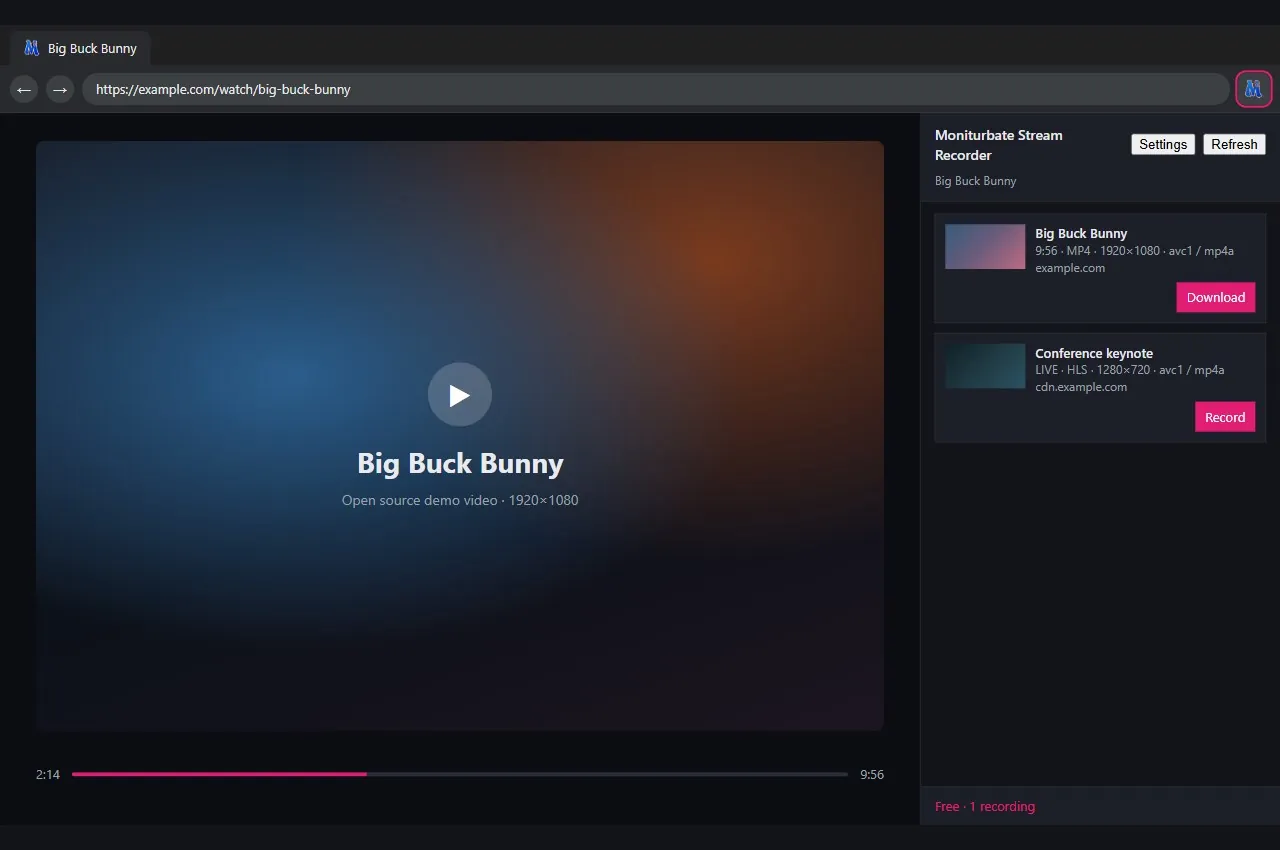
Moniturbate Video Streaming Recorder is a free Google Chrome extension that lists the video streams playing in your current tab and lets you download the original file or record live playback to disk. It works on Chaturbate, Stripchat, Cam4, CamSoda, BongaCams, Flirt4Free, Streamate, MyFreeCams, LiveJasmin, Jerkmate and any other site that plays HTML5 video, supports HLS (m3u8), DASH (mpd), progressive MP4, MediaSource and WebRTC, and saves MP4 or WebM files to your Downloads folder. The free tier runs one download or recording at a time; a Moniturbate license unlocks unlimited simultaneous jobs and auto-resume.
- Price
- Free · optional license $29/month
- Input formats
- HLS, DASH, MP4, WebM, MSE, WebRTC
- Output
- MP4 (remuxed), WebM, TS
- Requires
- Google Chrome 116+ on any OS
- Data collected
- None (license key only if you enter one)
- DRM streams
- Detected, not downloadable
A live cam recorder and video downloader that lives in your browser
Detects every stream in the tab
Open the side panel and see each stream with its type, resolution and codecs: progressive MP4 files, HLS playlists, DASH manifests, MediaSource buffers behind blob: URLs and WebRTC calls – including video embedded in iframes.
Downloads the original video
For on-demand video (recorded cam shows, clips, archives) Download fetches the original segments, decrypts AES-128 HLS and remuxes MPEG-TS into a clean MP4 that plays anywhere. No re-encoding, no quality loss.
Records live from the moment you click
Live cam shows have no file to download, so Record captures the stream in real time. Press Stop whenever you want; the file is written immediately and the job keeps running even if you close the panel.
Works where other downloaders fail
It runs inside your own Chrome session with the site's cookies and stream tokens, so Cloudflare checks, member-only areas, geo-locked CDNs and private or ticket shows you have access to all work – no 403 errors, no expired links.
Pick your quality
When a stream offers several renditions (1080p, 720p, 480p…) choose the one you want, or let the extension take the highest by default. Audio is included whenever the source has an audio track.
Your files, your folder
Recordings land in Downloads/Moniturbate by default, or straight into any folder you choose. Long sessions rotate into parts every 30 minutes or 1.9 GB, so a multi-hour show never becomes one fragile file.
Private by design
Stream URLs, page titles and recordings never leave your computer. The only request to moniturbate.com is an optional license check over HTTPS. No tracking, no ads, no remote code.
Auto-resume for licensed users
If a live stream drops and comes back while the tab stays open, a licensed extension starts a new recording on its own and can notify you about each drop and resume.
Any operating system
Because it is a Chrome extension, it runs on Windows, macOS, Linux and ChromeOS – the easiest way to record live cam streams on a Mac without installing desktop software.
Works on major adult cam sites – and every other video site
The extension is not tied to a list of websites. It watches the media requests of the tab you are on, so it works as a Chaturbate downloader, a Stripchat downloader, a Cam4, CamSoda or BongaCams recorder, and just as well on tube sites, clip stores, fan platforms and any embedded player. Public rooms, member areas and private shows you are watching are all detected the same way.
- Chaturbate
- Stripchat
- Cam4
- CamSoda
- BongaCams
- Flirt4Free
- LiveJasmin
- Streamate
- MyFreeCams
- Jerkmate
- LiveFreeFun
- Any HTML5 video site
How to download or record a live cam stream in Chrome
Four steps, about two minutes the first time and a few seconds after that.
-
1
Install the extension from the Chrome Web Store
Open the Moniturbate Video Streaming Recorder listing on the Chrome Web Store and click Add to Chrome. Pin the icon to your toolbar. Google Chrome 116 or newer is required; no account or signup is needed.
Open the Chrome Web Store listingFree · Google Chrome 116+ -
2
Open the stream and allow site access
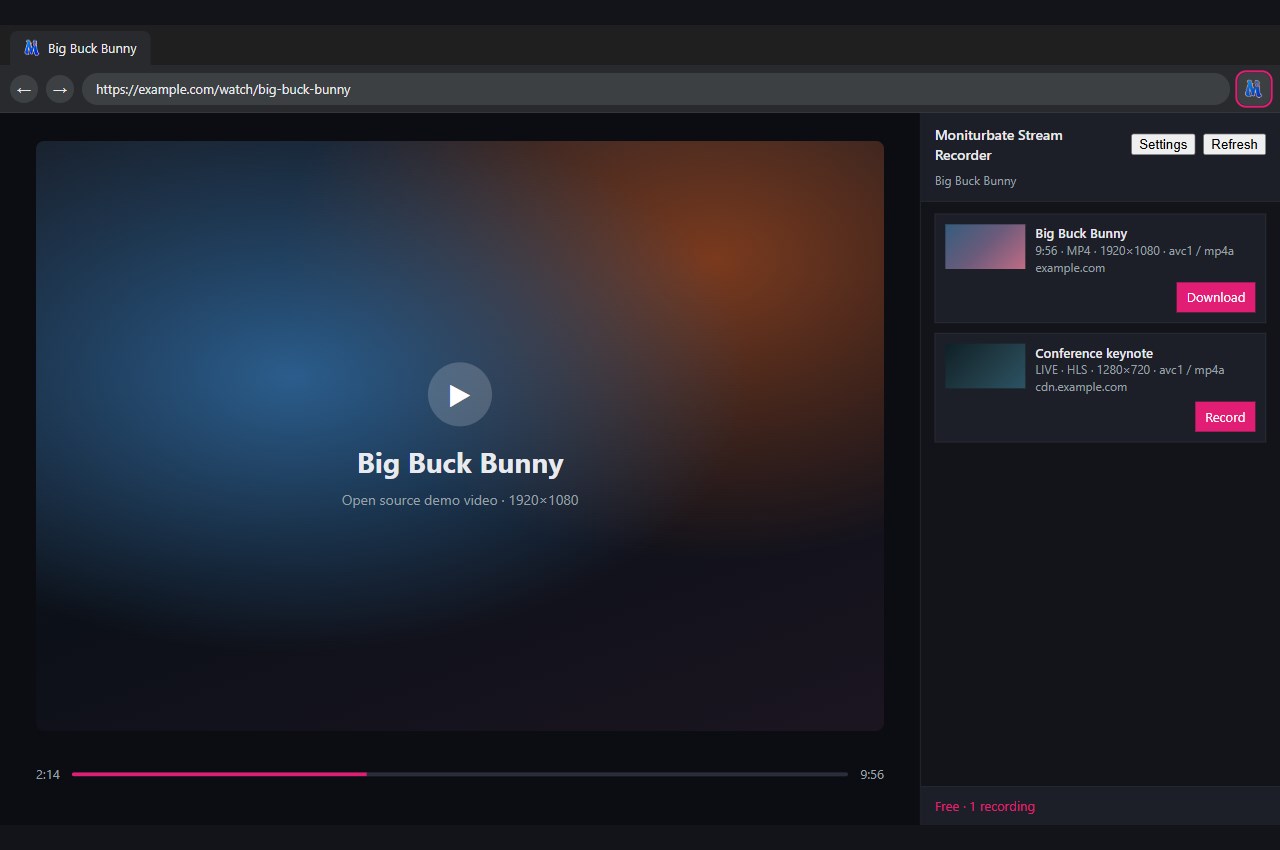
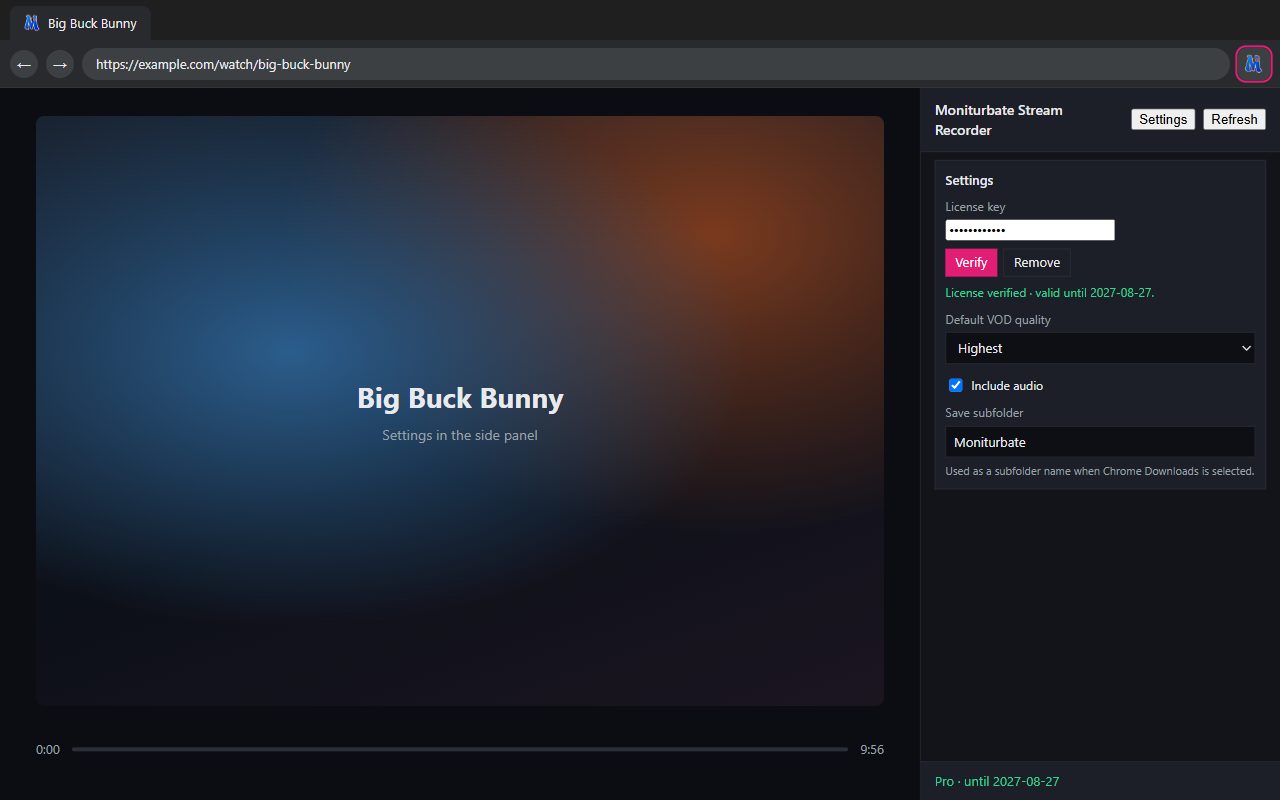
Go to the page where the video is playing and click the Moniturbate toolbar icon to open the side panel. The first time, click Allow site access so Chrome lets the extension see the media requests of that tab. If the stream was already playing, reload the page once so it is detected from the start.
-
3
Click Record for live streams or Download for on-demand videos
Each detected stream is shown as a card with its type, resolution and codecs. Live streams get a Record button, on-demand videos get a Download button. When several qualities are available, pick the one you want or keep the highest.
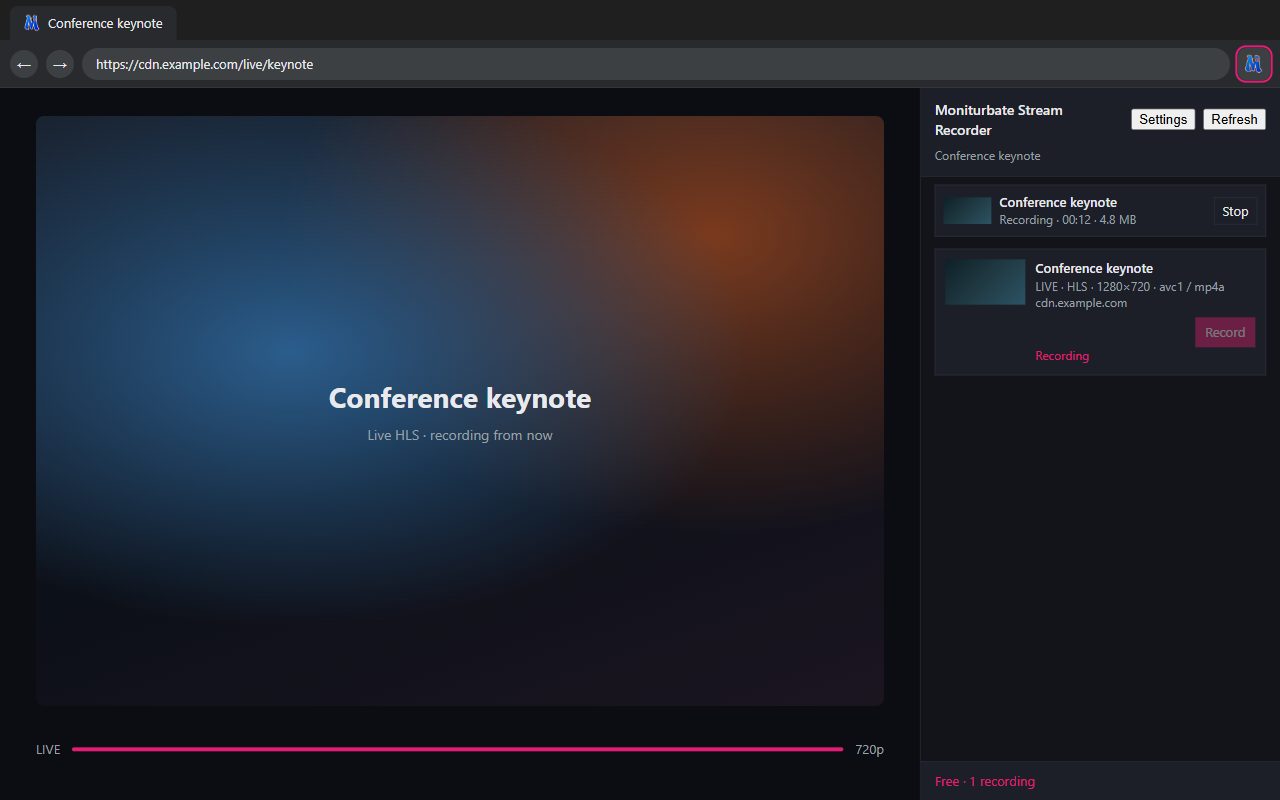
Live stream: Record captures from the moment you click. 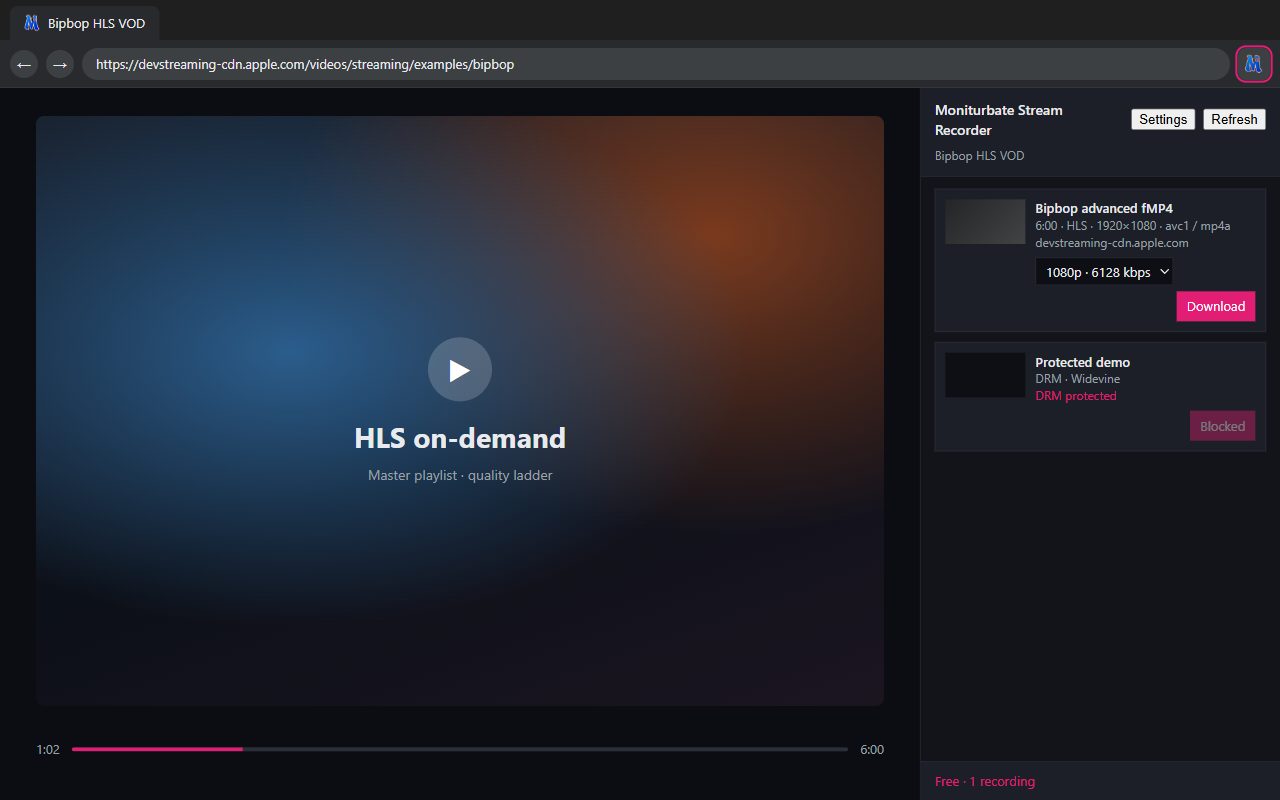
On-demand HLS: pick a quality, then Download. DRM streams show as blocked. -
4
Stop and open your video file
Click Stop when you are done. The job shows Saving until Chrome confirms the file, which is then in Downloads/Moniturbate or in the folder you selected in Settings. Recording keeps running even if you close the side panel.


Download or Record? A quick guide to what is playing
Websites deliver video in several ways, and the right way to save it depends on the delivery method. The extension detects the type for you and only shows the button that will work. Here is what each type means and what file you get.
| What is playing | Button | What you get |
|---|---|---|
| Progressive MP4 or WebM file A plain video URL, the classic "embedded video" | Download | The original file, byte for byte |
| HLS on-demand (m3u8) Recorded shows, VOD archives, most clip stores | Download | Segments fetched, AES-128 decrypted if needed, remuxed to MP4 (TS fallback) |
| DASH on-demand (mpd) | Download | Segments joined into an MP4 |
| Live HLS or DASH stream Live cam shows, live events, 24/7 channels | Record | Captured from the moment you click; WebM, TS or MP4 depending on the source |
| MediaSource-only player Video behind a blob: URL with no playlist exposed | Record | Captured from the video element as it plays |
| WebRTC stream Ultra-low-latency players, some cam sites | Record | Captured from the peer connection, with audio when a remote audio track exists |
| DRM-protected video Widevine, PlayReady, FairPlay, SAMPLE-AES | Blocked | Listed for information only – cannot be saved |
In practice: if the site gives you a reusable file or playlist, Download gets you the original. If the stream is live or exists only inside the player, Record captures it. That is also the answer to the classic "how do I download a blob video" question – you record it.
Why it works behind Cloudflare, logins and private shows
Most stream downloaders – desktop apps, online "paste a link" services and command-line tools – open a second connection to the video server that has nothing to do with your browser. That second connection has no session cookie, no signed CDN token and has never passed a Cloudflare challenge. The result is familiar: 403 Forbidden, an expired playlist, an empty file, or a stream that simply is not visible because the room is private.
A Chrome extension works differently. Moniturbate Video Streaming Recorder observes the exact requests the page's player makes and fetches the media through the same browser session – same cookies, same headers, same signed URLs, same IP. To the server it looks like the player buffering a little faster. That is why:
- Cloudflare-protected sites work: the challenge was solved when the page loaded.
- Member-only and premium content works: you are logged in, so the stream you watch is the stream that is saved.
- Private, ticket and spy shows work: as long as the video plays in your tab, it appears in the panel.
- Tokenized or geo-locked CDNs work: the tokens the player received are reused as-is.
- Sites that block downloaders work: there is no separate download client to block.
- DRM-encrypted video is not saved. Widevine, PlayReady, FairPlay and SAMPLE-AES streams are shown as blocked.
- Content you cannot play cannot be recorded. The extension never bypasses a login, a ticket or a ban.
- Recording uses your bandwidth: a 1080p live stream is roughly 2–4 GB per hour, so keep an eye on your connection when running several jobs.
Because everything happens inside Chrome, the extension does not need to know anything about a specific website. New players, new CDNs and new sites are picked up automatically – there is no site list to keep up to date and nothing to break when a site changes its layout.
Chrome extension vs Moniturbate desktop software vs web downloader
The extension records what is playing in your tab right now, on any site and any operating system. The Moniturbate desktop software watches a list of broadcasters and auto-records them the moment they go online, 24/7, without a browser tab. The web downloader needs no install at all but is limited to Chaturbate public rooms. Many users run the extension and the software side by side; one license key works in both.
| Chrome extension | Desktop software | Web downloader | |
|---|---|---|---|
| Runs on | Windows, macOS, Linux, ChromeOS (Google Chrome 116+) | Windows | Any browser, any device |
| Installation | One click from the Chrome Web Store | Download and run the installer | None |
| Works on | Any site that plays HTML5 video, cam sites included | 10 supported cam platforms | Chaturbate public rooms |
| Monitor a list and auto-record when a stream goes live | No – records what is open in your tab | Yes, 24/7 in the background | No |
| Private shows and content behind a login | Yes, if it plays in your tab | Public streams | Public rooms |
| Quality choice | Yes | Yes | Yes |
| Simultaneous recordings – free | 1 | 1 | 1 |
| Simultaneous recordings – licensed | Unlimited | Unlimited | Up to 10 |
| Auto-resume when a live stream drops | Licensed | Yes | No |
| Output files | MP4, WebM, TS | MP4, TS | MP4 |
Free forever, with an optional license
Free
$0 no account, no time limit
- Stream detection on every website
- Download and Record in every supported format
- Quality picker, audio included
- Save to Downloads or a folder you choose
- Automatic part rotation for long recordings
- 1 download or recording at a time
Licensed
$29 / month
- Everything in Free
- Unlimited simultaneous downloads and recordings
- Auto-resume when a live stream drops and comes back
- Drop / resume notifications
- Also unlocks auto-record, unlimited recordings and MP4 encoding in the desktop software
Licenses are sold on moniturbate.com, not through the Chrome Web Store. Paste your key in the extension's Settings and click Verify; the extension re-checks it about every six hours and keeps working for 24 hours if our server is unreachable. Remove the key at any time to return to the free tier.
Privacy, permissions and fair use
What the extension does with your data
Nothing leaves your computer. Media URLs, page titles, thumbnails, settings and recordings are processed locally; in-progress recordings sit in Chrome's storage until the file is saved, then they are deleted. The only network request to moniturbate.com is an HTTPS license check – and only if you paste a key. There is no analytics profile, no advertising and no remote code. Read the full Chrome extension privacy policy.
Why it asks for site access
Chrome cannot show an extension the media requests of a page without permission. Site access is an optional permission you grant with one click in the panel; it is what lets the extension list streams on the tab. You can revoke it at any time from chrome://extensions. Other permissions (downloads, storage, side panel) are the ones needed to save files, remember your settings and show the panel.
Fair use
Only save streams you have the right to keep, and respect each website's terms and the performers who make the content. The extension does not circumvent DRM, logins, tickets or bans; it simply saves what you are already allowed to watch. See our DMCA policy and, if you want to know more about the company behind it, our article on whether Moniturbate is safe to use.
Requirements
- Google Chrome 116 or newer (Windows, macOS, Linux, ChromeOS)
- Enough disk space: about 2–4 GB per hour of 1080p video
- A stable connection – recording downloads the stream in real time
Frequently asked questions about the Moniturbate Chrome extension
Is the Moniturbate Chrome extension really free?
Yes. Installing and using Moniturbate Video Streaming Recorder costs nothing and does not require an account. The free tier detects streams on every site, downloads or records in every supported format and lets you choose the quality, with one download or recording running at a time. An optional Moniturbate license ($29 per month, the same key used by the desktop software) unlocks unlimited simultaneous jobs, auto-resume and notifications.
Does it work on Chaturbate, Stripchat, Cam4 and other cam sites?
Yes. The extension is not tied to a list of websites: it watches the media requests of the current tab, so it works on Chaturbate, Stripchat, Cam4, CamSoda, BongaCams, Flirt4Free, Streamate, MyFreeCams, LiveJasmin, Jerkmate and any other site that plays HTML5 video. The only exception is DRM-protected video (Widevine, PlayReady, FairPlay, SAMPLE-AES), which is listed but cannot be saved.
Can I record private shows or videos behind a login?
Yes, as long as the video is playing in your tab. The extension reuses your own browser session, cookies and stream tokens, so member-only rooms, premium content and private, ticket or spy shows you have paid for are saved exactly as you see them. If you cannot watch it, the extension cannot record it.
Does it work on websites protected by Cloudflare?
Yes. Cloudflare challenges and bot checks are solved by your browser when the page loads. Because the extension fetches media through that same browser session instead of opening a separate connection, the CDN sees an ordinary player request and the download goes through.
How do I download any streaming video in Chrome?
Install the extension, open the page where the video plays, click the Moniturbate icon and allow site access. Every stream detected in the tab appears in the side panel with a Download button (on-demand video) or a Record button (live video). Click it, pick a quality if asked, and the file is saved to your Downloads folder.
What is the difference between Download and Record?
Download is offered when the site exposes a reusable file or playlist: progressive MP4 files and HLS or DASH on-demand videos. The extension fetches the original segments, decrypts AES-128 HLS when needed and remuxes them into an MP4. Record is offered for live streams and for players that only exist in memory (MediaSource, WebRTC): playback is captured in real time from the moment you click until you press Stop.
Which stream formats are supported?
HLS playlists (m3u8, including AES-128 encrypted variants), DASH manifests (mpd), progressive MP4 and WebM files, MediaSource buffers behind blob: URLs and WebRTC streams. DRM-encrypted content (Widevine, PlayReady, FairPlay, SAMPLE-AES) is detected and shown as blocked.
What file format do I get and where is it saved?
Downloads are saved as MP4 when the remux succeeds (a concatenated .ts file is the fallback). Live recordings are saved as WebM, TS or MP4 depending on the source. Files go to Downloads/Moniturbate by default, or straight into any folder you pick with Choose folder in Settings. File names are built from the page title, the resolution and a timestamp.
What happens if the live stream drops or I close the tab?
Closing the side panel does not stop a recording; the toolbar badge shows how many jobs are running. Closing the tab stops the job and saves what was captured. If the live stream itself drops, a free recording stops and is saved; licensed users get auto-resume, which starts a new file automatically when the stream comes back while the tab stays open.
Does it work on Mac, Linux or a Chromebook?
Yes. The extension runs wherever Google Chrome 116 or newer runs: Windows, macOS, Linux and ChromeOS. Other Chromium browsers that support the Chrome side panel API may work but are not officially supported.
Is the extension safe and what data does it collect?
Stream URLs, page titles, thumbnails and recordings are processed on your computer only and are never uploaded. The single request to moniturbate.com is an HTTPS license check, and only if you paste a license key. There is no tracking, no advertising profile and no remote code. Site access is an optional permission you grant with one click and can revoke at any time. See the extension privacy policy for details.
Why does a stream not show up in the side panel?
Click Refresh in the panel, make sure site access is allowed for that page, and reload the page if the video was already playing before the panel opened. Streams inside cross-origin iframes are usually still detected from their network requests. If the card shows DRM protected, the content is encrypted and cannot be saved.
Is there a limit on recording length?
No. Long recordings are automatically split into parts every 30 minutes or 1.9 GB so a multi-hour cam show never produces a single fragile file. Each part is saved as soon as it is complete.
Do I still need the Moniturbate desktop software?
Only if you want to monitor a list of broadcasters and auto-record them the moment they go online, 24/7, without keeping a tab open. The Chrome extension records what is playing in your tab right now, on any site and on any operating system. Many users run both, and one license key works in both.
Still stuck? Use the contact form – our support team usually answers within the hour.
Start saving live cam streams from your browser today
Free, private and ready in one click. Works on Chaturbate, Stripchat, Cam4, CamSoda, BongaCams and other cam sites – and everywhere else.
Add to Chrome – it's freeMoniturbate Video Streaming Recorder v1.0.10Desktop software · Web downloader · Desktop how-to guide · Extension privacy policy